This is default featured slide 1 title

Go to Blogger edit html and find these sentences.Now replace these sentences with your own descriptions.This theme is Bloggerized by Lasantha Bandara - Premiumbloggertemplates.com.

This is default featured slide 2 title

Go to Blogger edit html and find these sentences.Now replace these sentences with your own descriptions.This theme is Bloggerized by Lasantha Bandara - Premiumbloggertemplates.com.

This is default featured slide 3 title

Go to Blogger edit html and find these sentences.Now replace these sentences with your own descriptions.This theme is Bloggerized by Lasantha Bandara - Premiumbloggertemplates.com.

This is default featured slide 4 title

Go to Blogger edit html and find these sentences.Now replace these sentences with your own descriptions.This theme is Bloggerized by Lasantha Bandara - Premiumbloggertemplates.com.

This is default featured slide 5 title

Go to Blogger edit html and find these sentences.Now replace these sentences with your own descriptions.This theme is Bloggerized by Lasantha Bandara - Premiumbloggertemplates.com.

<div id="slider"> <a href="http://www.spiceupyourblog.com"><img src="https://blogger.googleusercontent.com/img/b/R29vZ2xl/AVvXsEisdP7VBy7OkYcmJ0YM0PDhTk-GhgSDXXs8rVPdMdp8HG2difgXNB4_1sUZzDUz9rpB78zMvu_snGiHgdKUELENNuQjml8c_iTXdge5BrfPHptLPEsXvc0ANYz_W3fkuedCcMpfDgmuwDE/s1600/toystory.jpg" title="This Is A Caption" /></a> <a href="http://www.spiceupyourblog.com"><img src="https://blogger.googleusercontent.com/img/b/R29vZ2xl/AVvXsEiZb9A64F_M4G0CiFWohJk8DGpkFOTEVNH6rdUPULcMX6lZ7OZiUwx0J34vOLfjE7jjEPfTcX8HZ3d2D6Eqp7pdixXYsppzawCFt-nXyeH_Wk3u5RQyuHVYnzYOdudLU6kbnhsvhrC6nUo/s1600/up.jpg" title="This Is Another Caption" /></a> <a href="http://www.spiceupyourblog.com"><img src="https://blogger.googleusercontent.com/img/b/R29vZ2xl/AVvXsEhDiQK9ZDERVD5EuDOJ1oxTKkKVRamZVsx8clW3oqECuwkVn62-8ggeXZShnBeo4iOvWTzOPB1zYRmq69S_q2G99esr94u10FMWQ8DZmzzFmbY7nx8W_ecsiC_iKXRBmK0a_hpKTWX1IZ8/s1600/walle.jpg" title="This is an example of a caption" /></a> <a href="http://www.spiceupyourblog.com"><img src="https://blogger.googleusercontent.com/img/b/R29vZ2xl/AVvXsEifUzlio7FH9-Gu3EqOOi8NfPIBS7NOFxsBhn9USQURiccHz6j6eKk78_l3sYpcTKk7OJ0ry58RzZQOqPmyDjHJM_Ebf8iAvSPuCEZ9nsZNQULzuF0UHMs3lqaZzv6-aygfP7J6NflQ3lc/s1600/nemo.jpg" title="This is another Caption" /></a> </div>

Sunday, 4 March 2012

All About How to connect your Computer to your Tv (Part IV):Computer to TV Troubleshooting


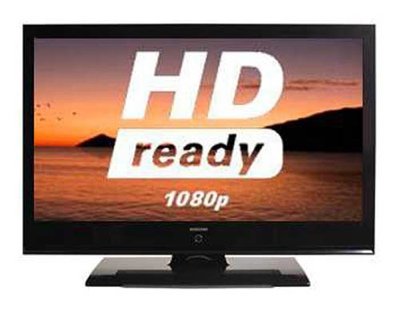
The biggest problem with connecting your computer to your TV is that, generally speaking, computers and TVs don't display at the same resolutions.(If you are reading this post I would suggest reading this first:http://techdeviant.blogspot.in/2012/03/all-about-how-to-connect-your-computer.html). For example, the closest thing to the HDTV resolution 720p (1280 x 720) is a monitor display mode called XGA (1280 x 960). Not quite the same. And the closest thing to 1080p (1920 x 1080) is a monitor display mode called WUXGA (1920 x 1200). Again, not quite the same.
The result, in most cases, is something called overscan, where the full computer screen image doesn't fit on the TV screen. Overscan is a bigger problem on SDTVs where the native screen resolution is much smaller than your computer's display. If you're going to use an SDTV as a monitor, plan on lowering your screen resolution to 800 x 600.

HDTVs also have overscan problems, but usually only the very edge of the computer image gets cropped. A bigger problem with HDTVs is when the TV refuses to display a signal that doesn't fit its native resolution.
Luckily, most HDTVs have the ability to scale incoming signals to match their native screen resolution. This involves either upconverting lower-resolution signals in the attempt to bring the resolution up to high definition or downconverting higher-resolution signals for lower-resolution screens. It's not perfect, but for most casual viewers, there's little to no noticeable loss in image quality.
In rare cases, the HDTV won't recognize the resolution of the signal sent by your computer. When you connect an external display to your computer, most graphics cards will automatically try to find a good match for the display's native resolution. If this doesn't work, you will probably need to edit your resolution with third-party software.
Two programs are considered the best solutions for solving connectivity problems between a computer and a TV: PowerStrip for Windows and DisplayConfigX for Mac. Both of these programs allow you to match your graphics card's resolution precisely with the native resolution of your TV. If your HDTV is 1080p, you can go into one of these programs and switch your computer's resolution to 1920 x 1080, even if this wasn't previously an option.
Avoid increasing the refresh rate on your graphics card, unless you have a 120-hertz HDTV. If you send a signal with a refresh rate over 60 hertz to a normal HDTV, you could damage the TV [source: Komando].

All About How to connect your Computer to your Tv (Part III) : Computer TV Cables


If you read our article "How do I know which cables to use?" then you know there is a baffling number of audio/video cables on the market. You'll have to make some sense of the different types of wiring necessary to connect your computer to your TV. First you need to figure out what kinds of audio/video outputs your computer has and what kinds of audio/video inputs your TV has. If you're lucky, you'll find a match right away. But depending on the type of equipment you own, you may need to get creative.
First, let's talk about which cables you'd use to connect a computer to a standard-definition TV. The most common video inputs on an SDTV are composite, S-video and component video. On computers, the most common video output is S-video. On a desktop PC, you'll find the 9-pin S-video jack on your graphics card next to where you connect your monitor.
Some Windows laptops also have S-video-out jacks, but most have 15-pin VGA jacks for connecting to external monitors. Luckily, it's easy to find adapters and special cables that have VGA connectors on one end and S-video connectors on the other. Apple also sells a wide variety of adapters to connect Mac desktops and laptops to the S-video or composite jack on SDTVs.
Even if you have an old TV that only accepts coaxial video cable (the one-pin variety that's mostly used for cable TV and satellite connections), you can use something called an RF converter box that can convert S-video or VGA input into coaxial output.
For connecting a computer to an HDTV, it's the same story. The most common HDTV inputs are component video, DVI and HDMI. If your graphics card doesn't have one of these outputs, then you'll need to buy a special converter box or adapter. For example, if your computer only has a VGA jack and your HDTV only accepts HDMI, then you'll need to buy a small box that will convert the signal for you.
If you're serious about playing high-definition content from your computer on your HDTV, then you should upgrade to a graphics card with a DVI or HDMI output. Most newer Apple laptops come with a Mini DisplayPort video output that easily connects with the DVI or HDMI inputs on an HDTV.
All of the cables that we've mentioned so far are video-only cables, which means that you'll need separate cables to handle your audio. The easiest solution is to connect some computer speakers to your audio card's headphone or audio-out jack. If you want to use your TV's built-in speakers, then you'll need to buy a 1/8-inch stereo mini-plug-to-RCA cable.
For the best possible audio, you'll need to invest in an audio card for your computer with either an optical or digital coaxial audio output. These connections carry high-bandwidth digital audio signals using cables that can be plugged directly into your home theater receiver.
Even if you have the right cables and have done your homework about resolutions, you still might have some problems connecting your computer to your TV.  Read the next post(http://techdeviant.blogspot.in/2012/03/all-about-how-to-connect-your-computer_1862.html), to know about some troubleshooting tips.

All About How to connect your Computer to your Tv (Part II):Screen Resolution and Aspect Ratio

Many people are familiar with the concept of screen resolution. Resolution is a measurement of how many individual pixels your TV or computer monitor can display at once. The old cathode ray TV (CRT) in your basement can display the equivalent of about 300,000 pixels [source: Kindig]. The latest HDTVs can display more than 2 million pixels. With more pixels, the image can be rendered in greater detail. It's the difference between painting a portrait with a thick sponge block or a small, delicate brush.

The standard way to classify TV resolution is with numbers like 480i, 720p, 1080i and 1080p. The bigger the number, the greater the screen resolution. The little "i" and "p" stand for interlaced and progressive scan. This has to do with the way in which the image is rendered on the screen. Refresh rates on TVs andcomputer monitors are measured in hertz. A refresh rate of 60 times per second translates to 60 hertz. An interlaced-scan TV refreshes half of the screen image 60 times per second. It refreshes the odd-numbered horizontal lines first and then the even-numbered lines. The result is that the full screen refreshes 30 times a second.


On a progressive scan television, the entire screen refreshes 60 times a second. The result is that progressive scan TVs have a noticeably smoother image when watching sports or other video with fast-moving action. All computer monitors are progressive scan [source: PCMag.com]. Some even have refresh rates faster than 60 times a second. This is why interlaced SDTVs make for lousy computer monitors. When you scroll, the image can't refresh fast enough to keep things smooth. As a result, you see that telltale flicker.

Resolution is important, but you must also take a screen's aspect ratio into account. Your goal when hooking your TV up as a monitor is to make the entire image fit within the boundaries of the TV screen. SDTVs use a 4:3 aspect ratio -- the ratio of the screen's width to its height is 4 to 3. HDTVs have a native 16:9 aspect ratio. While many computer monitors share those aspect ratios, not all of them do, and your computer may support many different screen resolutions with different aspect ratios.

In fact, your computer's preferences are unlikely to tell you the aspect ratio, and instead will tell you the resolution. The horizontal x vertical measurement is also the most common way to label computer monitor resolution. Some typical monitor resolutions are 640 x 480, 800 x 600 and 1024 x 768. If you don't know your monitor resolution, you can find out by going to whatismyscreenresolution.com. If you aren't connected to the Internet and you're using a Windows PC, right-click on the desktop and choose Preferences. Then choose the Settings tab. On a Mac, go to System Preferences and click Displays.

The trick is to find the resolution that best fits the TV's aspect ratio. This may not be as big a deal as it sounds, though. Modern operating systems can usually match the attached monitor's aspect ratio automatically. If your computer doesn't, you can manually adjust the settings in your computer's preferences to make it fit.

But there's more to hooking these two machines together than resolution and aspect ratio. You still have to get the information from the computer to the TV. In order to do that, we've got to solve the cable conundrum. Read the next post( http://techdeviant.blogspot.in/2012/03/all-about-how-to-connect-your-computer_5932.html ) to know more about it.

All About How to connect your Computer to your Tv(Part I)

There's something painfully ironic about sitting on your living room couch, just a few feet away from a beautiful widescreen HDTV, watching a movie on your tiny laptop. Yet this is what most of us do when we download movies or TV shows onto our computers.

The same goes for showing off our latest digital photos to friends. We all huddle around the 15-inch computer display while the TV screen goes unused. And what about that PowerPoint presentation you just gave at work? Wouldn't it have looked 1,000 times better on the wall-mounted plasma display in the conference room?


There are many compelling reasons why we want to connect our computers to our televisions, especially now that HDTVs are so popular. Everything from movies to photos to work presentations were made for the big-screen experience.

The first personal computers used TVs for monitors, but computer graphics technology quickly outpaced the image quality on standard-definition TVs (SDTVs). The typical modern computer monitor has the ability to display images at a much higher resolution than a regular TV. A computer monitor can display more individual pixels than an SDTV.

Even today, hooking a computer to an SDTV only makes sense if you want to use your computer as a DVD player. If you try to use an SDTV as a monitor, you'll have a hard time getting your full desktop to fit on the screen.

But with the advent of high-resolution, high-definition TVs like flat-panel LCDs, plasma, LCoS, and DLPdisplays, televisions now make excellent computer monitors. In fact, that's what the manufacturers of PC-based media centers are trying to achieve. The tricky part is figuring out exactly which TVs work with which computers and how to connect them all together.

Read the next post(
http://techdeviant.blogspot.in/2012/03/all-about-how-to-connect-your-computer_04.html) to learn more about bringing your small-screen life to the big leagues.


You can also watch the video on How to connect your computer/Laptop to your TV.
Link : http://www.intel.com/content/www/us/en/tech-tips-and-tricks/dave-taylor-hdmi-article.html

Why are the keys arranged the way they are on a QWERTY keyboard?

In 1874 Remington & Sons manufactured the first commercial typewriter, called the Remington Number 1. This typewriter was designed by Christopher Sholes and used the "QWERTY" keyboardwe are all familiar with.
This early typewriter used a mechanism with characters on the end of a bar. When a key was struck, a linkage would swing the bar into a tape coated with ink. When the character struck the tape, the impression of the character was transferred onto the paper, which was positioned behind the tape.
Sholes' original prototypes had a problem with the bars colliding with each other and jamming. So the story goes that he arranged the keys with the most common letters in hard to reach spots, to slow typists down and try to avoid this problem.


Whatever the reason for the QWERTY layout, it seems pretty unlikely that one of the first keyboard layouts invented would be perfect. The QWERTY keyboard is very different from the Dvorak keyboard layout. The Dvorak keyboard layout tries to minimize the distance traveled by the fingers. It also tries to make the typist alternate hands on consecutive letters as often as possible.

The Dvorak layout places all of the most commonly used letters in the home row so your fingers don't have to move at all to hit these keys. The left hand has all of the vowels and some consonants and the right hand has only consonants. So there are very few words in the English language that can be typed with only one hand on the Dvorak keyboard (two are "papaya" and "opaque"). Both "pumpkin" and "minimum" can be typed with one hand on a QWERTY keyboard -- give it a try.

This site shows the layout of the Dvorak keyboard. If I had typed this article on a Dvorak keyboard, my fingers would have traveled 30 meters versus the 54 meters they traveled on the QWERTY keyboard I use.

Some argue, however, the Dvorak keyboard is no more efficient than QWERTY. An independent study in 1956 showed that QWERTY typists and Dvorak typists had about the same rate of speed, and continued studies don't show a clear winner between the two. This may explain why QWERTY is still the standard.

If you want to see for yourself, you can switch your keyboard to a Dvorak configuration just by changing a setting on your computer's operating system. Depending on your keyboard, you may even be able to pry off the keys and rearrange them in the Dvorak layout.

Which layout would you have preferred if qwerty was not widely used. Leave your comments below.

Source : HowStuffWorks

Saturday, 3 March 2012

Does adding more RAM to your computer make it faster?


One topic you might hear people discussing when they're talking shop about computers is how much random access memory (RAM) they need to add to their computer. Up to a point, adding RAM will normally cause your computer to seem faster on certain types of operations. RAM is important because it eliminates the need to "swap" programs in and out.
When you run a program such as a word processor or an Internet browser, the microprocessor in your computer pulls the executable file (.exe) off the hard disk and loads it into RAM. Large programs like Microsoft Word or Excel use large amounts ofmemory. The microprocessor also pulls in a number of shared dynamic link libraries (DLLs) -- shared pieces of code used by multiple applications. The DLLs take many more megabytes.
Then the microprocessor loads in the data files at which you want to look, which might total several megabytes if you are looking at more than one document or browsing a page with a lot of graphics. So a big application can easily take 100 megabytes of RAM or more, which can slow your system down significantly if there isn't enough memory. On your machine, at any given time you might have the following applications running:
  • ­­­A word processor
  • A spreadsheet
  • An e-mail program
  • A drawing program
  • Three or four browser windows
  • A fax program
  • A Telnet session
Besides all of those applications, the operating system itself is taking up a good bit of space. Everything together may need more RAM than your machine has. Where does all the extra RAM space come from?


The extra space in your computer's RAM is created by an important operating system component called the virtual memorymanager (VMM). The VMM looks at RAM and finds sections that aren't currently needed. It puts these sections of RAM in a place called the swap file on the hard disk. For example, let's say you have your e-mail program open, even though you haven't looked at e-mail in the last 45 minutes. The VMM moves all of the bytes making up the e-mail program's .exe, DLLs and data out to the hard disk. That's called swapping out the program. The next time you click on the e-mail program, the VMM will swap in all of its bytes from the hard disk, and probably swap something else out in the process. Because the hard disk is relatively slow compared to RAM, the act of swapping things in and out causes a noticeable delay.
So should you just keep adding more RAM until your pockets are empty or your computer can't hold any more? If you have a very small amount of RAM (say, 256 megabytes), then the VMM is always ­swapping things in and out to get anything done. In that case, your computer feels like it is crawling. As you add more RAM, you get to a point where you only notice the swapping when you load a new program or change windows. Once your computer has more RAM than the software running on the machine uses, the VMM has plenty of room and you should never see it swapping anything. After that, adding more memory would have no effect.
Some applications -- like Photoshop, many compilers, most film editing and animation packages -- need large amounts of RAM to do their job. If you run them on a machine with too little RAM, they swap constantly and run very slowly. You can get a huge speed boost by adding enough RAM to eliminate the swapping. Programs like these may run 10 to 50 times faster once they have enough RAM.
 Leave comments below if you have any doubt and queries or simply want to comment on the post.

Google: How it Generates it Revenue


Unlike some Internet companies, Google has multiple ways of generating revenue beyond private investment or selling shares of its stock. Google uses three methods to partner with merchants and advertisers: Google Checkout, Google AdWords and Google AdSense.

Google Checkout is a service designed to make online purchases easier for both the consumer and the retailer. On the consumer end, users create a free Google Checkout account. Part of the account creation process includes entering a credit or debit card number, which Google stores in a secure database. When the user visits a retailer that subscribes to Google Checkout, he or she can click on the checkout option and Google facilitates the transaction. This means that the user doesn't have to enter a card number every time he or she makes a purchase.

Retailers can set up Google Checkout accounts for free, but as of August 2008, Google charges a 2 percent plus 20-cent fee per transaction. For example, if a customer buys a $10 item from a merchant, Google will charge that merchant 40 cents for that transaction.
Another way Google generates revenue is through a pair of Web advertising services called AdWords and AdSense. With AdWords, advertisers can submit ads to Google that include a list of keywords relating to the product, service or business. When a Google user searches the Web using one or more of those keywords, the ad appears on the SERP in a sidebar. The advertiser pays Google every time a user clicks on the ad.
AdSense is similar, except that instead of displaying ads on a Google SERP, a webmaster can choose to integrate ads into his or her own site. Google's spiders crawl the site and analyze the content. Then, Google selects ads that contain keywords relevant to the webmaster's site. The webmaster can customize the location and color of the sidebar containing the ads. Every time someone clicks on an ad on the webmaster's site, the webmaster receives a portion of the ad revenue (Google gets the rest).
With both AdWords and AdSense, Google's strategy is to provide targeted advertising to users. Google believes that by providing advertising relevant to the information for which the user is already searching, the chances of someone following the ad are greatly increased [source: Google].

Google Trivia: Google isn't just famous for creating and providing useful services -- it has also bought a few innovative companies and integrated them. These include YouTube (a video-sharing Web site), Blogger (a weblog service), Picasa (a photo-sharing service) and Jaiku (an SMS and micro-blog service).

Lets see what do you think about Google. Leave your comments below expressing your views.